Send an invite
- Open Staff and press Invite staff.
- Type their Email.
- Choose a Role. Each role card says what the person will and will not see.
- Press Send invite.
To invite more people in one go, use Add a person under More people: each gets their own invitation, and the button becomes Send invites. (Inviting several at once is on the Pro plan.)
The invitation link works for 7 days. The person follows it, signs in or makes an account, and joins your staff with that role.
Some roles only the parish priest can give. For everyone else they're greyed out, with a note.
As parish priest, you can also choose whether the new person acts in your name. The form asks, and shows a confirm step before the invite goes out.
See where things stand
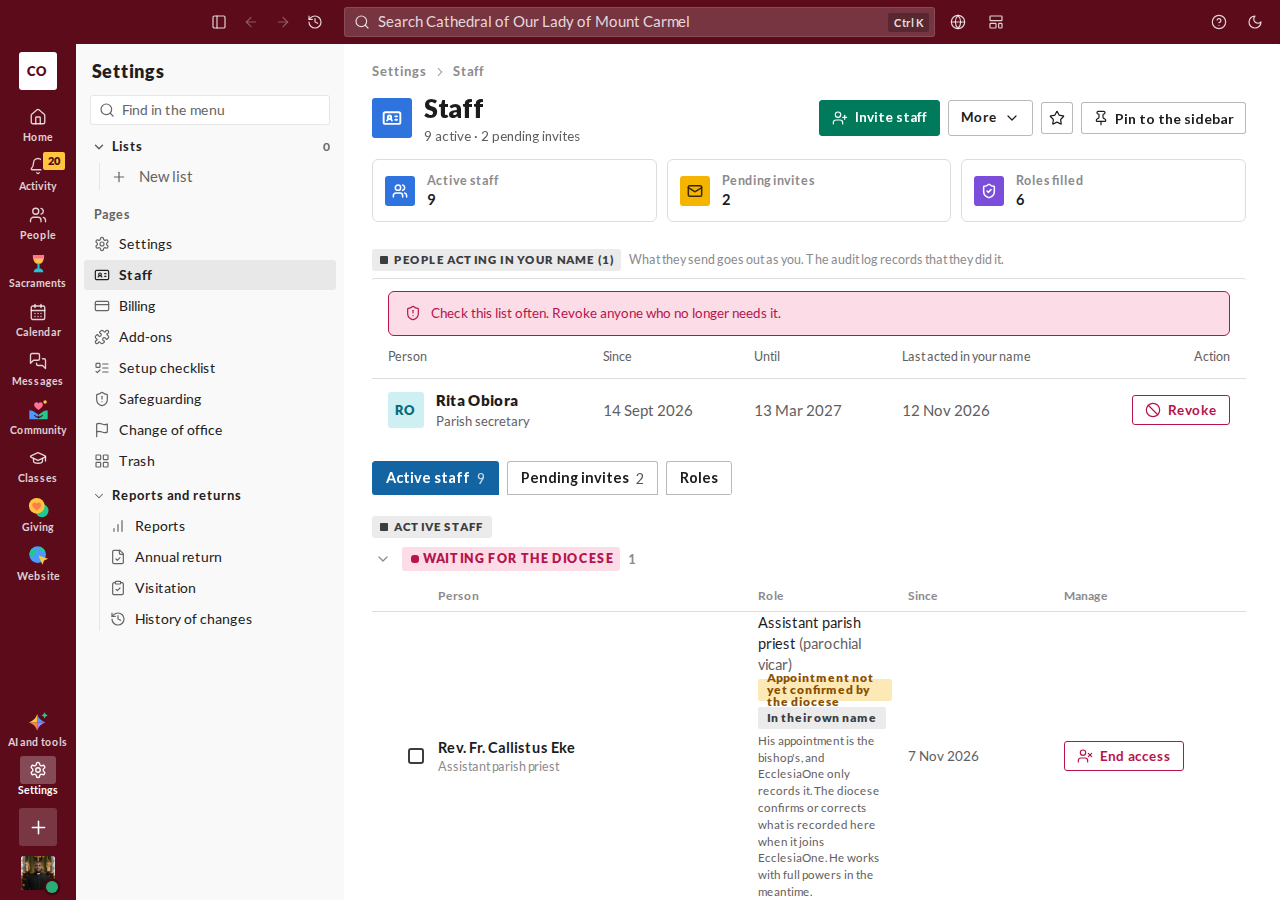
The Staff page has three views:
- Active staff: the people who hold a role here.
- Pending invites: sent but not accepted yet. Each shows when it expires. Send again sends the invitation once more with a fresh 7 days (the old link stops working), and you can cancel one.
- Roles: every role, who holds it and what it can do.
Change or end a role later
Only the parish priest changes or removes a staff member's role. Each change asks first and says what the person gains and loses. Right after, you can press Undo for a few seconds. See Your role and what you can do.
Who can invite
The parish priest and the parish administrator can invite staff. Can't see Invite staff? Ask one of them.